ePortfolio - Identity Enhancements - 2026

This document is to assist organisations integrating their existing Smart Assessor site with Identity. This document covers the functionality available as of July 2026. This document covers users logging into Smart Assessor using Identity.
This document is tailored to the Identity integration with Smart Assessor and does not cover standard Identity configurations. For this, please refer to the dedicated Identity guidance.
OneAdvanced Identity is a platform that centralises user authentication across products and services provided by OneAdvanced, so users have a more secure and seamless authentication process between their different applications. It also allows users to access their OneAdvanced applications using a single set of credentials, rather than having to rely on multiple usernames and passwords.
For administrators, there is a single location where you can control the authentication process into your OneAdvanced systems, allowing for easier user management as well as access to OneAdvanced’s most secure authentication tools such as Multi-Factor Authentication (MFA), and integration with existing Active Directory (AD) instances.
You must request the integration is enabled for you with the OneAdvanced Support Team. They will provide you access to the supporting materials, such as this guide, to help you understand the changes that will impact all users accessing your Smart Assessor site.
You must provide the Support Team with a date you wish the integration is enabled.
If you do not use Identity with any other OneAdvanced product, the Support Team will also request details for an Administrator from within your organisation, so they have the correct access once the integration is live.
As part of enabling your Integration, the Support Team will also ensure you have the appropriate licences to leverage the ePortfolio features within the Apprenticeship Management solution, which uses your existing Smart Assessor data to provide an improved user experience for your users. Specific details regarding the Apprenticeship Management features is not included in this guide, however are available on the OneAdvanced website and can be requested with your Account Manager.
3. Existing Users Accessing ePortfolio
3.1. What Happens to your Existing Users
After Identity has been enabled within your Smart Assessor site, then Smart Assessor will not attempt to migrate existing users into the authentication platform until the user attempts to login using their existing Smart Assessor Username and Password.
At this point, Smart Assessor will perform background checks on the account the user is attempting to access and will then present them with an appropriate route to help them onboard themselves.
3.2. Check 1: The User Already Logs into the Smart Assessor site with Identity
The first check that is performed verifies if the account the user is trying to access has already been set up in Identity and previously used to access the Smart Assessor site.
In this scenario, the user no longer needs to enter their Smart Assessor Username and Password to authenticate. Instead, they can select the ‘Login via OneAdvanced Identity’ button available on the login screen
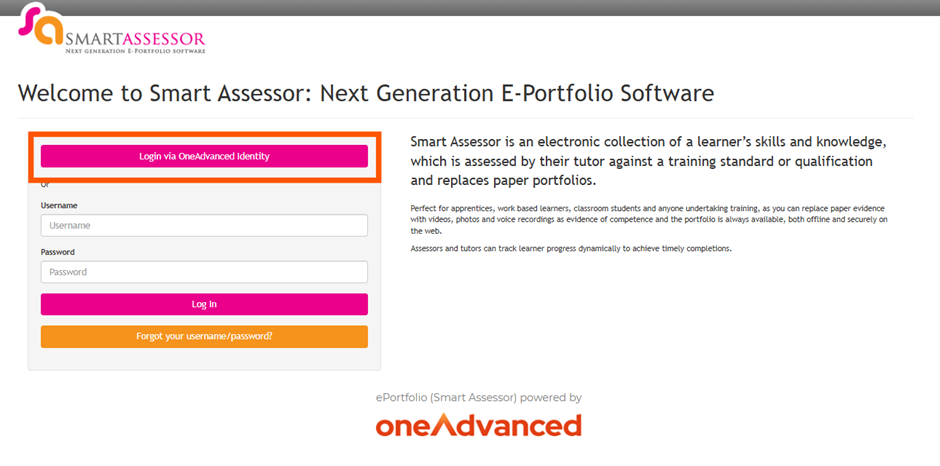
If an Advanced ID from Identity is already associated with the account the user is trying to access, then Smart Assessor will present them with a reminder they can select the ‘Login via OneAdvanced Identity’ button. The user will then be directed to continue logging in via the Identity pages.
3.3. Check 2: A Data Issue Is Identified with the Smart Assessor Account
In the event the first check identifies that the account the user is trying to access is not associated with Identity, then the second check will look for other user accounts in your Smart Assessor site that meet both of the following criteria:
1. Associated with the same Email Address
2. Has an Advanced ID, linking the account to Identity
If another account in your Smart Assessor site is identified, then this indicates the second account already exists within your Identity instance.
Please note that this check will also identify if the email address associated with the account attempting to be accessed has an invalid email address (eg joe.bloggs, joe.bloggs@oneadvanced, joe.bloggs.com, etc).
Identity requires each user to have a unique, properly formed, email address. Therefore, the account the user is attempting to access cannot be synced into Identity.
However, the user will have 30 days to raise with a system administrator within your organisation that they need to have their email address changed in Smart Assessor to a unique address not already in use in either your Smart Assessor site or Identity instance.
Whilst within the 30 Day period, Smart Assessor will then continue to allow the user to successfully authenticate into Smart Assessor without Identity.
Once the 30 Days period expires, the user will be blocked from authenticating with the Smart Assessor Username and Password until the email address associated with the account is updated in Smart Assessor.
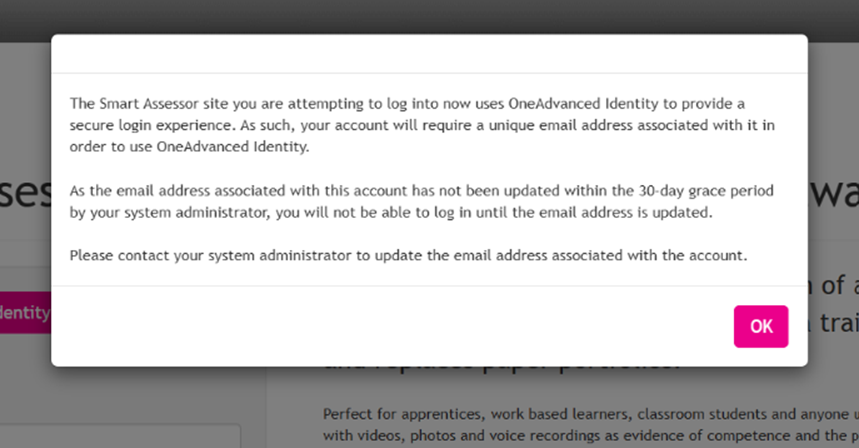
As an Administrator, when a user raises that they need their account checked, then the actions you must take are:
· Locate the user within your Smart Assessor site whilst using your ‘Master Admin’ role. If they are a Learner, go to the ‘Learners’ tab. If they are not a Learner, go to ‘Admin’ > ‘Maintain Users’.
· When the user is located, review that their email address is a properly formed address that is unique to your Smart Assessor site.
· It is advised to also check the Username (User ID) of the user. If there is a space in either the Username or email address fields, this will cause the migration of the user’s data to Identity to fail.
· There are some use cases where a user’s first name and surname entered into Smart Assessor contain brackets. However, please note that Identity does not accept brackets within these fields, so they must be removed from the first name and surname fields for the user in Smart Assessor.
· Once the fields for the user are properly formed and unique to your Smart Assessor site, then you can inform the user to try logging into Smart Assessor again using their Smart Assessor username and password.
3.4. Check 3: The User Already Logs into Another Application in the Same Identity Instance
In the event the first and second check identifies that the Smart Assessor account attempting to be accessed has a unique, properly formed email address and does not have an associated Advanced ID, then Smart Assessor performs a third check.
The third check will look in your Identity instance for an account associated with the same email address as the account in Smart Assessor. The purpose for this is for those who already use Identity with another OneAdvanced application. For example, your instance of the Learner Management System (PICS) is already integrated with Identity. A Learner who already accesses the Learner Management System through Identity is now attempting to log into their Smart Assessor account.
In the event an Identity account is located, Smart Assessor will retrieve the Advanced ID from Identity for the account, then save it to the account attempting to be accessed in Smart Assessor.
The user will then be presented with a message informing them they can now log into Smart Assessor using Identity and will encourage them to use the ‘Login via OneAdvanced Identity’ button on the Smart Assessor login screen moving forward.
3.5. The User is Brand New to Identity
In the event the three checks find the user has never logged into your Identity instance, does not exist in your Identity instance, and has a unique, properly formed email address, then Smart Assessor concludes the user must be onboarded into Identity for the very first time.
In this scenario, Smart Assessor will inform the user what Identity is and prompt them to generate a Welcome Email to begin the onboarding process. Once the user has selected to generate the email, they will need to check their inbox for a Welcome Email from the sender ‘OneAdvanced Identity’.
The user will then need to follow the steps from the email to set up their Identity account. Once the user completes their onboarding steps, they will then be redirected to Smart Assessor*.
*Identity integrates with a range of applications provided by OneAdvanced. Therefore, your system administrator for Identity must ensure that the Welcome Emails generated will redirect the user to the correct URL.
For the legacy Smart Assessor application, the Admin must enter ‘https://www.smartassessor.co.uk’.
For the Apprenticeship Management suite, the Admin must enter ‘https://education.oneadvanced.com’.
Please refer to this Identity guide for more information on this part of the configuration.
The Admin must then go into Smart Assessor > Admin > Client Configuration to determine which URL is used in the Welcome Email for Learners, Assessors and Employer Managers.
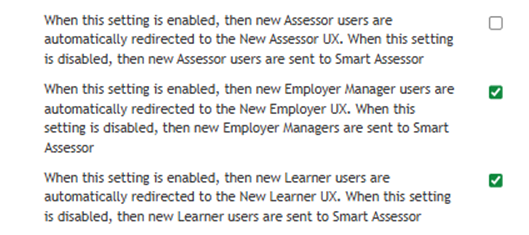
4. General Use After the Integration is Enabled
4.1. What Happens When a New User is Added to ePortfolio After Identity is Enabled
While Smart Assessor will not automatically migrate user data to Identity at the point of the integration’s enablement, it will attempt to migrate any new users who are added to your Smart Assessor site after the integration is enabled.
If the user who is added to your Smart Assessor site already exists in your Identity instance, such as a Learner who already uses Identity to log into Learner Management System, then they will be able to use their same Identity account to access Smart Assessor. Please note, users in this scenario will have already received a Welcome Email from Identity. Therefore, they will not receive a notification to inform them they have been added to Smart Assessor.
If the user who has been added does not have an existing Identity account in your instance, then Smart Assessor will migrate the user’s data into Identity as soon as possible. This will in turn trigger the Welcome Email to their inbox.
4.2. When do Learners Receive the Welcome Email?
In the event Identity is enabled in your site and learners are added into Smart Assessor and the learners do not have existing Identity Accounts, then by the default, the system will migrate the user into Identity and trigger a Welcome Email at the point of migration.
We understand that in certain scenarios, it’s preferable that learners receive the Welcome Email in line with the start date of their course. Master Admins have control to ensure the system will hold back from migrating learners into Identity until the day before their earliest planned start date.
As a Master Admin > ‘Admin’ > ‘Client Configuration’, then this setting can be disabled to migrate learners to Identity the day before their earliest planned start date, which in turn would trigger the Welcome Email a day before their earliest start date: When this setting is enabled, then the Welcome Email send to new learners immediately after they are added to the system.

When this setting is disabled, and a learner added to the system does not have course information, and therefore no earliest start date to refer to, then the learner will not migrate into Identity.
When this setting is disabled, and a learner added to the system has an earliest start date which is already in the past, then the learner will automatically migrate to Identity and therefore receive the Welcome Email.
Please note that this setting only impacts learners and has no effect on Non-Learner users.
4.3. Learners Needing the Welcome Email to be Resent
In the event a learner can no longer use the Welcome Email due to expired links, then Assessor users can trigger the email to be resent from Smart Assessor, without needing to raise with your organisation’s Identity Admins.
Assessors can log into Smart Assessor and go to the ‘Learners’ tab. After locating the learner and selecting their name, the Assessor can select ‘Resend Welcome Email’.
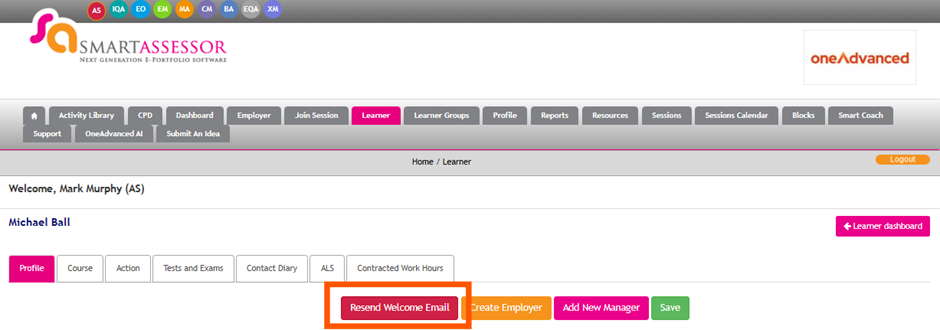
4.4. Non-Learners Needing the Welcome Email to be Resent
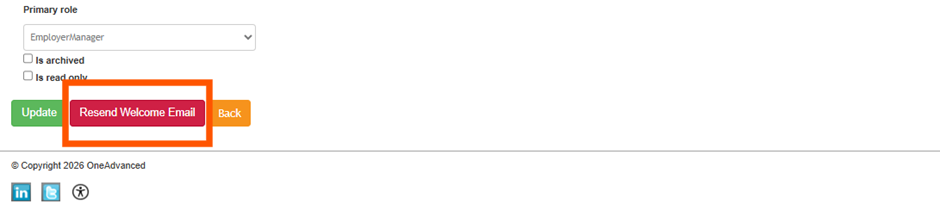
In the event a user who is not a learner can no longer use the Welcome Email due to expired links, then a Master Admin user can trigger the email to be resent from Smart Assessor, without needing to raise with your organisation’s Identity Admins.
Master Admins can log into Smart Assessor and go to ‘Admin’ > ‘Maintain Users’. After selecting the required user, you can select ‘Resend Welcome Email’.
4.5. How can I track my users that are within a Grace Period?
The grace period is triggered after Identity is enabled in the ePortfolio (Smart Assessor) site and the user has authenticated using their Smart Assessor username and password. The user can continue to authenticate in this manner for 30 calendar days. When the grace period expires, the user must authenticate using Identity.
A Master Admin user can access the report via ‘Reports’ > ‘Identity – Users in a Grace Period’.
The report will display a row per user who is actively in a grace period. The report includes a ‘Refresh’ button to update the report after other users have entered the grace period or to remove those who have ended their grace period and now authenticate using Identity.
Each row in the report displays the following details:
· Forename & Surname: this assists the admin to easily locate the user in the site.
· Roles: this assists the admin to easily locate the user in the site.
· Username: this displays the Smart Assessor username of the user.
· Email Address: this displays the email address of the user. Malformed or invalid email addresses are a common cause of data issues when trying to migrate a user into Identity. Therefore, it is recommended the admin checks the email is valid from the report.
· Days Remaining: this displays the number of days remaining in the grace period. If a user only has a few days remaining, then it is advisable the admin prioritises resolving any data issues with the account.
· Identity Migration Error: in the event the user attempted to migrate to Identity when logging in, and the migration failed, then the error will display in the report. This assists admins with understanding what data needs to be updated to resolve the migration for the user.
